Google Ads Conversion Tracking Audit: 15 Checks Before You Trust Your Data
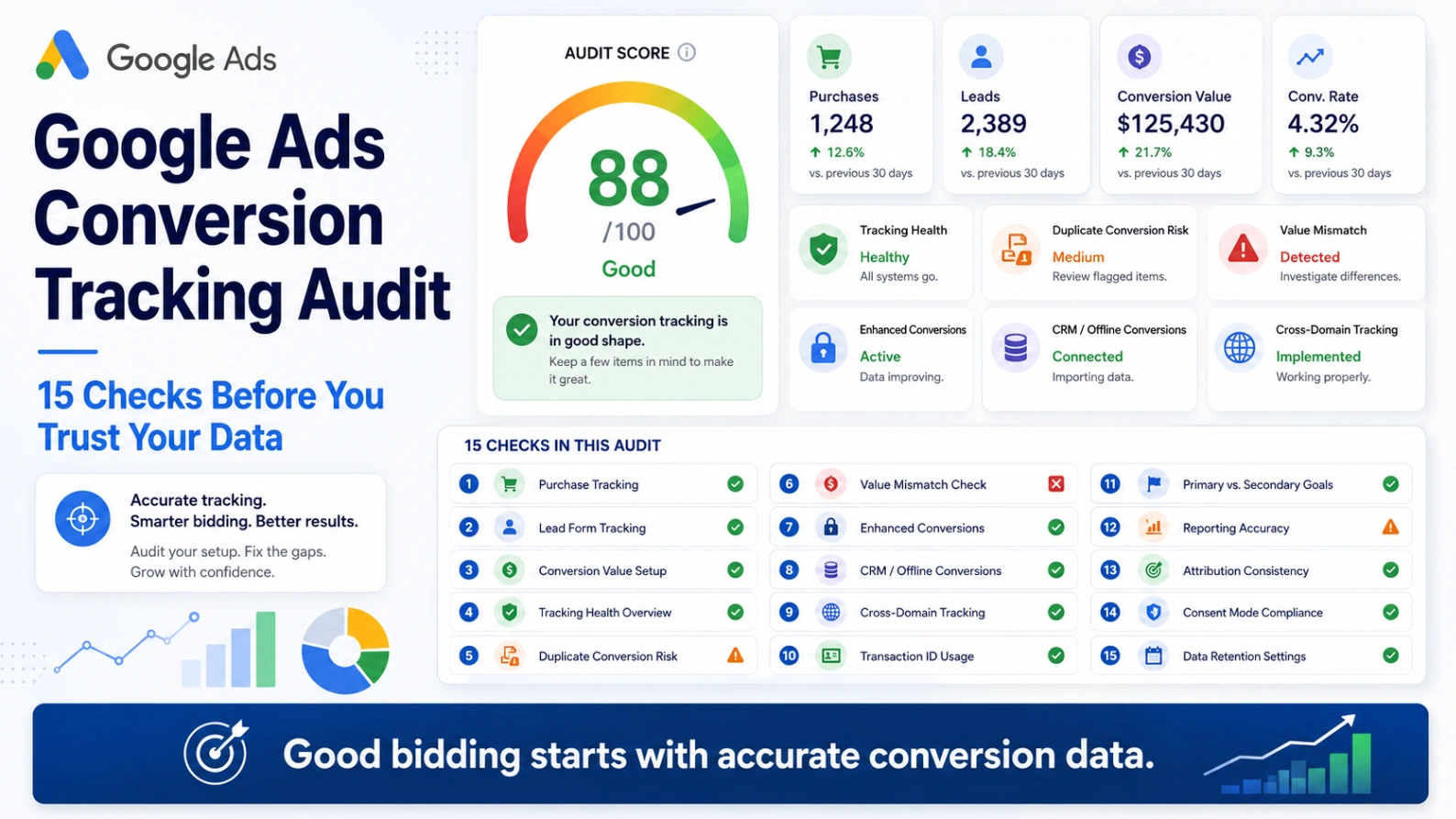
Google Ads conversion tracking influences almost every important account decision.
It affects:
Reported CPA and ROAS
Budget allocation
Smart Bidding
Campaign comparisons
Keyword decisions
Performance Max optimisation
Forecasting
Client and management reporting
When tracking is inaccurate, the problem extends far beyond the conversion column.
A duplicate purchase can make revenue appear stronger than it is. A page view incorrectly marked as a primary goal can make a campaign appear efficient. A missing transaction value can cause two orders with completely different values to look identical.
Google Ads may then optimise bids using misleading data.
A Google Ads conversion tracking audit checks whether the actions being measured are accurate, unique, valuable and suitable for bidding.
Here are the 15 checks to complete before trusting the performance shown inside the account.
What Is a Google Ads Conversion Tracking Audit?
A conversion tracking audit reviews how customer actions are collected, configured, reported and used for optimisation.
It should examine:
What triggers each conversion
Whether it fires once
Whether its value is correct
Whether the right action receives credit
Which actions guide automated bidding
Whether website and CRM outcomes are connected
Whether privacy and consent settings affect collection
Whether the reported totals match business records
Google Ads can measure website actions such as purchases and form submissions after someone interacts with an advert. These measurements can then be used to evaluate and optimise campaign performance.
The objective of the audit is not simply to confirm that a tag fires.
It is to confirm that the data represents a real and commercially valuable outcome.
1. List Every Conversion Action
Begin by exporting every conversion action in the account.
Record:
Name
Source
Category
Status
Primary or secondary
Value setting
Counting method
Attribution setting
Included campaigns
Recent conversion volume
Common sources include:
Google Ads website tags
Google Analytics imports
Phone calls
App events
CRM imports
Offline conversions
Third-party integrations
Look for actions with unclear names such as:
Conversion
Form
Submit
Purchase 2
Imported event
New conversion action
Every conversion should have a name that clearly identifies the source and outcome.
For example:
Purchase – Google Ads tag
is much easier to audit than:
Website conversion 3
2. Confirm Which Actions Are Primary
Primary actions can appear in the main Conversions column and may be used by bidding when their conversion goal is selected. Secondary actions are generally used for observation and appear in All Conversions rather than directly guiding campaign optimisation.
Review every primary action and ask:
Should Google actively optimise towards this?
Does it represent a completed outcome?
Is its quality consistent?
Can it be linked to revenue or genuine business value?
Potential secondary actions include:
Form starts
Add to basket
Contact-page visits
Email clicks
Video engagement
Time on site
Brochure downloads
These actions may be useful for analysis, but they should not automatically carry the same importance as purchases, completed bookings or qualified leads.
3. Check for Duplicate Conversion Actions
A common problem is measuring the same outcome through more than one source.
For example:
A purchase recorded by the Google Ads tag
The same purchase imported from GA4
A third-party Shopify integration recording it again
Each implementation may work correctly in isolation, while the account reports the transaction multiple times across separate conversion actions.
Compare:
Conversion timestamps
Conversion totals
Values
Sources
Campaign distribution
Purchase IDs where available
Select one trusted purchase action for bidding and make alternative versions secondary or remove them once the preferred implementation has been validated.
4. Confirm Purchases Fire Only Once
Complete a test purchase and inspect what happens after the confirmation page loads.
Then:
Refresh the page
Revisit the page from browser history
Open it in another tab
Return later
Test both desktop and mobile
The purchase should not fire again merely because the confirmation page is refreshed.
Google recommends using a unique transaction ID to prevent duplicate sales from being counted. When the same conversion action receives the same transaction ID twice, the second instance can be identified as a duplicate.
The transaction ID should come from the genuine order or booking system, not a randomly generated value created each time the page loads.
5. Validate Transaction IDs
For ecommerce and bookings, each completed transaction should pass a unique and stable ID.
Check that the value is:
Present
Unique to the order
Consistent across systems
Not blank
Not the same generic value for every sale
Not regenerated during a page refresh
Suitable examples include:
Order number
Booking reference
Transaction reference
Subscription ID
Google Ads uses transaction IDs to reduce duplicate conversion reporting, so incorrect or missing IDs can undermine the accuracy of purchase data.
6. Test the Conversion Value
A purchase conversion should normally pass the actual order value rather than a fixed value such as £1.
Complete test orders with:
Different product prices
Multiple products
Discounts
Delivery charges
Different currencies where relevant
Refundable or promotional items
Confirm the value inside Google Ads reflects the agreed revenue definition.
Google Ads supports transaction-specific values where each conversion can pass its own value, along with a default value when one is unavailable.
Document whether the reported value includes:
VAT
Delivery
Discounts
Gift cards
Refunds
Subscription renewals
Consistency matters because Target ROAS and Maximise Conversion Value depend on the values supplied.
7. Check the Currency
A £1,000 purchase should not be recorded as $1,000, €1,000 or £100,000.
Test orders from every market and verify:
Currency code
Numerical value
Decimal formatting
Currency conversion
Google Ads account currency
Ecommerce-platform currency
Google’s current setup guidance requires the conversion value, transaction ID and currency to be available when dynamic conversion data is sent.
This is particularly important for international ecommerce accounts where the checkout currency differs by country.
8. Review the “One” vs “Every” Setting
Google Ads allows conversion actions to count either every conversion following an interaction or only one conversion. Google recommends considering every conversion for sales, where each order creates value, and one for lead actions where repeated submissions from the same interaction may not represent additional value.
Typical choices are:
Purchases: Every
Bookings: Every
Leads: Usually one
Phone enquiries: Usually one
Repeated page-based actions: Depends on the business outcome
Using one for purchases may undercount customers who place multiple orders.
Using every for an easily repeated lead event may inflate reported lead volume.
9. Confirm the Trigger Represents Completion
A conversion should normally fire when the desired action has completed, not merely begun.
Potentially unreliable triggers include:
Clicking the Submit button before validation
Opening a form
Clicking towards an external booking system
Visiting the checkout page
Clicking a telephone number without calling
Reaching a generic thank-you page accessible without submitting
For forms, test:
Successful submission
Missing required fields
Invalid email
Server error
Duplicate submission
Spam submission
Only the successful outcome should trigger the completed lead conversion.
Google supports manual conversion implementations for button clicks and customised events, but the trigger and data still need to represent the intended action correctly.
10. Test the Google Tag Across the Journey
Google recommends placing the Google tag across the website, with the relevant conversion event configured where the conversion occurs. It also advises checking that the implementation uses the correct Google Ads account, conversion ID and label.
Audit:
Landing pages
Product pages
Forms
Basket
Checkout
Confirmation page
Subdomains
Payment provider
Booking system
Look for:
Missing tags
Duplicate containers
Old Google Ads IDs
Test-account tags
Multiple GTM containers
Events firing before consent
Events firing on the wrong page
Use browser debugging and Tag Assistant rather than relying solely on the status shown inside Google Ads.
11. Check Cross-Domain Tracking
Many customer journeys move between domains.
For example:
example.com → booking.exampleplatform.com
or:
shop.com → secure-payment-provider.com
If the journey is not connected correctly, the advertising click may be lost before the conversion happens.
Google recommends site-wide tagging on all relevant domains and cross-domain tracking where the conversion takes place on a different domain from the landing page.
Test the complete journey from an advert landing page through to conversion and confirm that campaign attribution survives the domain change.
12. Review Enhanced Conversions
Enhanced conversions supplement existing tracking by securely sending hashed first-party data, such as an email address, to improve conversion measurement. Google states that the feature can improve measurement accuracy and strengthen bidding signals.
Check:
Whether enhanced conversions are enabled
Whether consent requirements are met
Which implementation method is being used
Whether customer data is collected on the conversion page
Whether the data is formatted correctly
Whether diagnostics show recent activity
Whether match-quality warnings exist
Google provides diagnostics for enhanced-conversion implementations to help identify setup and data-quality issues.
Enhanced conversions should support a working base conversion implementation rather than being used to disguise fundamental tracking problems.
13. Connect Leads With CRM Outcomes
A submitted lead is not always a valuable lead.
It may later become:
Invalid
Duplicate
Uncontactable
Qualified
A sales opportunity
A customer
Offline conversion imports allow advertisers to connect ad clicks or calls with later outcomes occurring in a CRM, over the telephone or through an offline sales process.
For lead-generation accounts, audit whether the following are imported:
Qualified lead
Sales-qualified opportunity
Proposal
Closed sale
Revenue
Margin
Google also supports enhanced conversions for leads, which can supplement identifiers such as the GCLID with hashed first-party customer data.
Without later-stage data, Google may optimise for campaigns generating the easiest forms rather than the strongest customers.
14. Review Cart and Product Data
Ecommerce advertisers should confirm that product-level order data matches the Merchant Center feed.
Google requires the item IDs sent with conversion cart data to match the product IDs in the linked Merchant Center account. Its diagnostics can flag mismatched item IDs and missing cost-of-goods data.
Check:
Product ID format
Merchant Center account connection
Quantity
Unit price
Basket revenue
Product cost
Discounts
Feed identifiers
Incorrect product IDs may allow the purchase to be counted while weakening product-level reporting and profitability analysis.
15. Reconcile Google Ads With Source Data
Finally, compare Google Ads against the underlying business system.
For ecommerce:
Google Ads purchases
Ecommerce-platform orders
Payment-provider transactions
Revenue
Refunds
Cancelled orders
For lead generation:
Google Ads leads
Website-form records
CRM leads
Valid leads
Qualified opportunities
Sales
The figures will not always match exactly because platforms use different attribution methods, processing times and reporting windows.
However, large or unexplained differences require investigation.
Look for:
Google Ads reporting more purchases than the store
Revenue significantly exceeding ecommerce revenue
More leads in Google Ads than received by the business
Missing transactions
Sudden changes after website updates
Conversion volume changing without a matching business change
The audit should end with a documented explanation of every major discrepancy.
A Simple Conversion Tracking Audit Scorecard
Rate each area as:
Pass: Working and validated
Warning: Working but needs improvement
Fail: Incorrect or unreliable
Unknown: Cannot be confirmed
Your scorecard should cover:
Area | Status |
Primary conversions | Pass / Warning / Fail |
Duplicate actions | Pass / Warning / Fail |
Purchase firing | Pass / Warning / Fail |
Transaction IDs | Pass / Warning / Fail |
Conversion values | Pass / Warning / Fail |
Currency | Pass / Warning / Fail |
Counting settings | Pass / Warning / Fail |
Form triggers | Pass / Warning / Fail |
Site-wide tagging | Pass / Warning / Fail |
Cross-domain tracking | Pass / Warning / Fail |
Enhanced conversions | Pass / Warning / Fail |
CRM imports | Pass / Warning / Fail |
Product data | Pass / Warning / Fail |
Consent implementation | Pass / Warning / Fail |
Platform reconciliation | Pass / Warning / Fail |
Prioritise failures that affect the conversions currently used by automated bidding.
How Often Should Conversion Tracking Be Audited?
Review conversion tracking after:
A new website launch
A checkout change
A form rebuild
A domain migration
A new consent platform
A CRM change
A Google Tag Manager update
A new ecommerce integration
A sudden improvement or decline in reported performance
A lighter validation should also form part of routine account management.
Tracking can fail even when no Google Ads campaign setting has been changed.
Final Thoughts
Google Ads optimisation depends on the quality of the data provided.
Before changing bids, budgets or campaign structures, confirm:
The conversion represents a real outcome.
It fires once.
Its value is accurate.
The correct actions guide bidding.
Website results connect with CRM or ecommerce data.
Reported performance matches commercial reality.
GoogleAdsAudits.com provides an independent audit covering conversion tracking, enhanced conversions, offline imports, bidding, wasted spend and growth opportunities through read-only account access.
Before trusting your CPA or ROAS, make sure the conversions behind them can be trusted.
Frequently Asked Questions
How do I audit Google Ads conversion tracking?
List every conversion action, identify which are primary, complete test conversions and validate firing, values, currency, transaction IDs, counting settings and CRM outcomes.
Why is Google Ads recording too many conversions?
Common causes include duplicate conversion actions, repeat firing on confirmation pages, imported GA4 events alongside Google Ads tags or lead actions set to count every interaction.
Should purchases count as one or every conversion?
Google generally positions every as appropriate for sales because each purchase may add value, while one may be more suitable for unique lead actions.
What is the difference between primary and secondary conversions?
Primary conversion actions may be used for campaign optimisation and appear in the main Conversions column. Secondary actions are typically observation-only and appear in All Conversions.
Do I need transaction IDs?
They are strongly recommended for purchases and bookings because they help Google identify and exclude duplicate transactions.
Do enhanced conversions replace standard conversion tracking?
No. Enhanced conversions supplement an existing conversion implementation using hashed first-party data.
Why do Google Ads conversions differ from GA4?
The platforms can differ because of attribution, reporting dates, conversion settings and processing. Large discrepancies should still be investigated.
Should form starts be primary conversions?
Usually not when a completed form or qualified lead is available. Form starts can remain secondary for diagnostic and funnel analysis.
AUTHOR BIO
Jack Felstead is an award-winning Paid Media, AI and Digital Growth Consultant with 17 years of experience helping businesses improve customer acquisition, conversion tracking, advertising efficiency, revenue and profit.